搭建MCP服务器
社区译文;来源: MCP 80041ab0
在本教程中,我们将构建一个简单的 MCP 天气服务器并将其连接到主机 Claude for Desktop。
我们将要构建什么
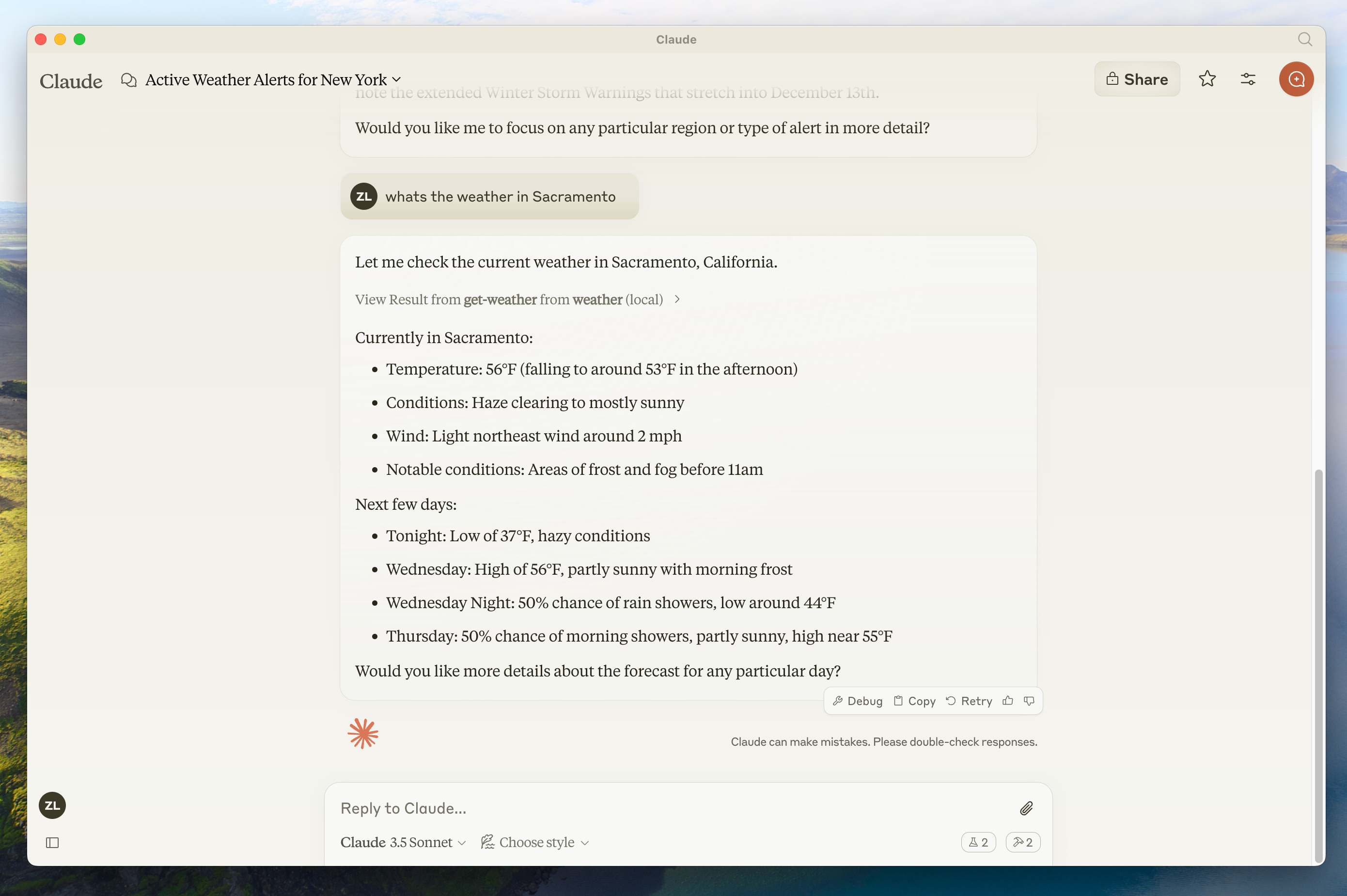
我们将构建一个公开两个工具的服务器:get_alerts 和 get_forecast。然后我们将服务器连接到 MCP 主机(在本例中为 Claude for Desktop):
MCP 核心概念
MCP 服务器可以提供三种主要类型的功能:
本教程将主要关注工具。
Python
让我们开始构建我们的天气服务器! 您可以在这里找到我们将要构建的完整代码。
必备知识
本快速入门假设您熟悉:
- Python
- Claude 等 LLM
MCP 服务器日志记录
实现 MCP 服务器时,请注意如何处理日志记录:
对于基于 STDIO 的服务器: 切勿写入 stdout。写入 stdout 会损坏 JSON-RPC 消息并破坏您的服务器。默认情况下,print() 函数写入标准输出,因此请将其完全排除在 STDIO 服务器之外。
对于基于 HTTP 的服务器: 标准输出日志记录很好,因为它不会干扰 HTTP 响应。
最佳实践
- 使用标准库
logging模块,该模块写入 stderr。 - 使用
logging.getLogger(__name__)为每个模块创建一个记录器,并从您的工具中调用它。
快速示例
import logging

logger = logging.getLogger(__name__)

# ❌ Bad (STDIO)
print("Processing request")

# ✅ Good (STDIO)
logger.info("Processing request")  # writes to stderr
系统要求
- 安装了 Python 3.10 或更高版本。
- 您必须使用 Python MCP SDK 2.0.0 或更高版本。
设置您的环境
首先,让我们安装 uv 并设置我们的 Python 项目和环境:
curl -LsSf https://astral.sh/uv/install.sh | shpowershell -ExecutionPolicy ByPass -c "irm https://astral.sh/uv/install.ps1 | iex"请务必随后重新启动终端,以确保 uv 命令被选中。
现在,让我们创建并设置我们的项目:
# Create a new directory for our project
uv init weather
cd weather

# Create virtual environment and activate it
uv venv
source .venv/bin/activate

# Install dependencies
uv add "mcp[cli]"

# Create our server file
touch weather.py
# Create a new directory for our project
uv init weather
cd weather
# Create virtual environment and activate it
uv venv
.venv\Scripts\activate
# Install dependencies
uv add mcp[cli]
# Create our server file
new-item weather.py现在让我们深入构建您的服务器。
构建您的服务器
导入包并设置实例
将这些添加到 weather.py 的顶部:
from typing import Any

import httpx2
from mcp.server import MCPServer

# Initialize MCPServer
mcp = MCPServer("weather")

# Constants
NWS_API_BASE = "https://api.weather.gov"
USER_AGENT = "weather-app/1.0"httpx2是SDK本身依赖的HTTP客户端,所以安装mcp就已经带进来了。
MCPServer 类使用 Python 类型提示和文档字符串自动生成工具定义,从而可以轻松创建和维护 MCP 工具。
辅助函数
接下来,我们添加辅助函数来查询和格式化来自国家气象服务 API 的数据:
async def make_nws_request(url: str) -> dict[str, Any] | None:
    """Make a request to the NWS API with proper error handling."""
    headers = {"User-Agent": USER_AGENT, "Accept": "application/geo+json"}
    async with httpx2.AsyncClient() as client:
        try:
            response = await client.get(url, headers=headers, timeout=30.0)
            response.raise_for_status()
            return response.json()
        except Exception:
            return None


def format_alert(feature: dict) -> str:
    """Format an alert feature into a readable string."""
    props = feature["properties"]
    return f"""
Event: {props.get("event", "Unknown")}
Area: {props.get("areaDesc", "Unknown")}
Severity: {props.get("severity", "Unknown")}
Description: {props.get("description", "No description available")}
Instructions: {props.get("instruction", "No specific instructions provided")}
"""
实施工具执行
工具执行处理程序负责实际执行每个工具的逻辑。让我们添加它:
@mcp.tool()
async def get_alerts(state: str) -> str:
    """Get weather alerts for a US state.

    Args:
        state: Two-letter US state code (e.g. CA, NY)
    """
    url = f"{NWS_API_BASE}/alerts/active/area/{state}"
    data = await make_nws_request(url)

    if not data or "features" not in data:
        return "Unable to fetch alerts or no alerts found."

    if not data["features"]:
        return "No active alerts for this state."

    alerts = [format_alert(feature) for feature in data["features"]]
    return "\n---\n".join(alerts)


@mcp.tool()
async def get_forecast(latitude: float, longitude: float) -> str:
    """Get weather forecast for a location.

    Args:
        latitude: Latitude of the location
        longitude: Longitude of the location
    """
    # First get the forecast grid endpoint
    points_url = f"{NWS_API_BASE}/points/{latitude},{longitude}"
    points_data = await make_nws_request(points_url)

    if not points_data:
        return "Unable to fetch forecast data for this location."

    # Get the forecast URL from the points response
    forecast_url = points_data["properties"]["forecast"]
    forecast_data = await make_nws_request(forecast_url)

    if not forecast_data:
        return "Unable to fetch detailed forecast."

    # Format the periods into a readable forecast
    periods = forecast_data["properties"]["periods"]
    forecasts = []
    for period in periods[:5]:  # Only show next 5 periods
        forecast = f"""
{period["name"]}:
Temperature: {period["temperature"]}°{period["temperatureUnit"]}
Wind: {period["windSpeed"]} {period["windDirection"]}
Forecast: {period["detailedForecast"]}
"""
        forecasts.append(forecast)

    return "\n---\n".join(forecasts)
运行服务器
最后,让我们初始化并运行服务器:
if __name__ == "__main__":
    mcp.run(transport="stdio")
您的服务器已完成!运行 uv run weather.py 启动 MCP 服务器,该服务器将侦听来自 MCP 主机的消息。
现在让我们从现有的 MCP 主机 Claude for Desktop 测试您的服务器。
使用 Claude for Desktop 测试您的服务器
首先,确保您安装了 Claude for Desktop。 您可以安装最新版本 这里。 如果您已经有 Claude for Desktop,请确保它已更新到最新版本。
我们需要为您要使用的任何 MCP 服务器配置 Claude for Desktop。为此,请在文本编辑器中打开位于 ~/Library/Application Support/Claude/claude_desktop_config.json 的 Claude for Desktop App 配置。如果该文件不存在,请确保创建该文件。
例如,如果您安装了 VS Code:
code ~/.config/Claude/claude_desktop_config.jsoncode ~/Library/Application\ Support/Claude/claude_desktop_config.jsoncode $env:AppData\Claude\claude_desktop_config.json然后,您将在 mcpServers 密钥中添加您的服务器。仅当至少正确配置了一台服务器时,MCP UI 元素才会显示在 Claude for Desktop 中。
在本例中,我们将添加单一天气服务器,如下所示:
{
  "mcpServers": {
    "weather": {
      "command": "uv",
      "args": [
        "--directory",
        "/ABSOLUTE/PATH/TO/PARENT/FOLDER/weather",
        "run",
        "weather.py"
      ]
    }
  }
}
{
"mcpServers": {
"weather": {
"command": "uv",
"args": [
"--directory",
"C:\\ABSOLUTE\\PATH\\TO\\PARENT\\FOLDER\\weather",
"run",
"weather.py"
]
}
}
}uv 可执行文件的完整路径放入 command 字段中。您可以通过在 macOS/Linux 上运行 which uv 或在 Windows 上运行 where uv 来获取此信息。pwd 或在 Windows 命令提示符下运行 cd 来获取此信息。在 Windows 上,请记住在 JSON 路径中使用双反斜杠 (\\) 或正斜杠 (/)。这告诉 Claude for Desktop:
- 有一个名为“weather”的 MCP 服务器
- 通过运行
uv --directory /ABSOLUTE/PATH/TO/PARENT/FOLDER/weather run weather.py启动它
保存文件,然后重新启动 Claude for Desktop。
TypeScript
让我们开始构建我们的天气服务器! 您可以在这里找到我们将要构建的完整代码。
必备知识
本快速入门假设您熟悉:
- TypeScript
- Claude 等 LLM
MCP 服务器日志记录
实现 MCP 服务器时,请注意如何处理日志记录:
对于基于 STDIO 的服务器: 切勿使用 console.log(),因为它默认写入标准输出 (stdout)。写入 stdout 会损坏 JSON-RPC 消息并破坏您的服务器。
对于基于 HTTP 的服务器: 标准输出日志记录很好,因为它不会干扰 HTTP 响应。
最佳实践
- 使用
console.error()写入 stderr,或使用写入 stderr 或文件的日志库。
快速示例
// ❌ Bad (STDIO)
console.log("Server started");

// ✅ Good (STDIO)
console.error("Server started"); // stderr is safe
系统要求
对于 TypeScript,请确保安装了最新版本的 Node。
设置您的环境
首先,让我们安装 Node.js 和 npm(如果尚未安装)。您可以从 nodejs.org 下载它们。 验证您的 Node.js 安装:
node --version
npm --version
对于本教程,您需要 Node.js 版本 20 或更高版本。
现在,让我们创建并设置我们的项目:
# Create a new directory for our project
mkdir weather
cd weather

# Initialize a new npm project
npm init -y

# Install dependencies
npm install @modelcontextprotocol/server zod
npm install -D @types/node typescript

# Create our files
mkdir src
touch src/index.ts
# Create a new directory for our project
md weather
cd weather
# Initialize a new npm project
npm init -y
# Install dependencies
npm install @modelcontextprotocol/server zod
npm install -D @types/node typescript
# Create our files
md src
new-item src\index.ts更新您的 package.json 以添加类型:“module”和构建脚本:
{
  "type": "module",
  "bin": {
    "weather": "./build/index.js"
  },
  "scripts": {
    "build": "tsc && chmod 755 build/index.js"
  },
  "files": ["build"]
}
在项目的根目录中创建 tsconfig.json:
{
  "compilerOptions": {
    "target": "ES2022",
    "module": "Node16",
    "moduleResolution": "Node16",
    "types": ["node"],
    "outDir": "./build",
    "rootDir": "./src",
    "strict": true,
    "esModuleInterop": true,
    "skipLibCheck": true,
    "forceConsistentCasingInFileNames": true
  },
  "include": ["src/**/*"],
  "exclude": ["node_modules"]
}
现在让我们深入构建您的服务器。
构建您的服务器
导入包并设置常量
将这些添加到 src/index.ts 的顶部:
import { McpServer } from "@modelcontextprotocol/server";
import { serveStdio } from "@modelcontextprotocol/server/stdio";
import { z } from "zod";

const NWS_API_BASE = "https://api.weather.gov";
const USER_AGENT = "weather-app/1.0";
辅助函数
接下来,我们添加辅助函数来查询和格式化来自国家气象服务 API 的数据:
// Helper function for making NWS API requests
async function makeNWSRequest<T>(url: string): Promise<T | null> {
  const headers = {
    "User-Agent": USER_AGENT,
    Accept: "application/geo+json",
  };

  try {
    const response = await fetch(url, { headers });
    if (!response.ok) {
      throw new Error(`HTTP error! status: ${response.status}`);
    }
    return (await response.json()) as T;
  } catch (error) {
    console.error("Error making NWS request:", error);
    return null;
  }
}

interface AlertFeature {
  properties: {
    event?: string;
    areaDesc?: string;
    severity?: string;
    status?: string;
    headline?: string;
  };
}

// Format alert data
function formatAlert(feature: AlertFeature): string {
  const props = feature.properties;
  return [
    `Event: ${props.event || "Unknown"}`,
    `Area: ${props.areaDesc || "Unknown"}`,
    `Severity: ${props.severity || "Unknown"}`,
    `Status: ${props.status || "Unknown"}`,
    `Headline: ${props.headline || "No headline"}`,
    "---",
  ].join("\n");
}

interface ForecastPeriod {
  name?: string;
  temperature?: number;
  temperatureUnit?: string;
  windSpeed?: string;
  windDirection?: string;
  shortForecast?: string;
}

interface AlertsResponse {
  features: AlertFeature[];
}

interface PointsResponse {
  properties: {
    forecast?: string;
  };
}

interface ForecastResponse {
  properties: {
    periods: ForecastPeriod[];
  };
}
实施工具执行
工具执行处理程序负责实际执行每个工具的逻辑。让我们将其添加到 createServer() 函数中,该函数构建服务器实例并在其上注册这两个工具:
// Build a server instance and register its tools. serveStdio calls this
// whenever it needs an instance, so every call must return a fresh one.
function createServer() {
  const server = new McpServer({
    name: "weather",
    version: "1.0.0",
  });

  server.registerTool(
    "get_alerts",
    {
      description: "Get weather alerts for a state",
      inputSchema: z.object({
        state: z
          .string()
          .length(2)
          .describe("Two-letter state code (e.g. CA, NY)"),
      }),
    },
    async ({ state }) => {
      const stateCode = state.toUpperCase();
      const alertsUrl = `${NWS_API_BASE}/alerts?area=${stateCode}`;
      const alertsData = await makeNWSRequest<AlertsResponse>(alertsUrl);

      if (!alertsData) {
        return {
          content: [
            {
              type: "text",
              text: "Failed to retrieve alerts data",
            },
          ],
        };
      }

      const features = alertsData.features || [];
      if (!features.length) {
        return {
          content: [
            {
              type: "text",
              text: `No active alerts for ${stateCode}`,
            },
          ],
        };
      }

      const formattedAlerts = features.map(formatAlert);
      const alertsText = `Active alerts for ${stateCode}:\n\n${formattedAlerts.join("\n")}`;

      return {
        content: [
          {
            type: "text",
            text: alertsText,
          },
        ],
      };
    },
  );

  server.registerTool(
    "get_forecast",
    {
      description: "Get weather forecast for a location",
      inputSchema: z.object({
        latitude: z
          .number()
          .min(-90)
          .max(90)
          .describe("Latitude of the location"),
        longitude: z
          .number()
          .min(-180)
          .max(180)
          .describe("Longitude of the location"),
      }),
    },
    async ({ latitude, longitude }) => {
      // Get grid point data
      const pointsUrl = `${NWS_API_BASE}/points/${latitude.toFixed(4)},${longitude.toFixed(4)}`;
      const pointsData = await makeNWSRequest<PointsResponse>(pointsUrl);

      if (!pointsData) {
        return {
          content: [
            {
              type: "text",
              text: `Failed to retrieve grid point data for coordinates: ${latitude}, ${longitude}. This location may not be supported by the NWS API (only US locations are supported).`,
            },
          ],
        };
      }

      const forecastUrl = pointsData.properties?.forecast;
      if (!forecastUrl) {
        return {
          content: [
            {
              type: "text",
              text: "Failed to get forecast URL from grid point data",
            },
          ],
        };
      }

      // Get forecast data
      const forecastData = await makeNWSRequest<ForecastResponse>(forecastUrl);
      if (!forecastData) {
        return {
          content: [
            {
              type: "text",
              text: "Failed to retrieve forecast data",
            },
          ],
        };
      }

      const periods = forecastData.properties?.periods || [];
      if (periods.length === 0) {
        return {
          content: [
            {
              type: "text",
              text: "No forecast periods available",
            },
          ],
        };
      }

      // Format forecast periods
      const formattedForecast = periods.map((period: ForecastPeriod) =>
        [
          `${period.name || "Unknown"}:`,
          `Temperature: ${period.temperature || "Unknown"}°${period.temperatureUnit || "F"}`,
          `Wind: ${period.windSpeed || "Unknown"} ${period.windDirection || ""}`,
          `${period.shortForecast || "No forecast available"}`,
          "---",
        ].join("\n"),
      );

      const forecastText = `Forecast for ${latitude}, ${longitude}:\n\n${formattedForecast.join("\n")}`;

      return {
        content: [
          {
            type: "text",
            text: forecastText,
          },
        ],
      };
    },
  );

  return server;
}
运行服务器
最后,通过 stdio 为服务器提供服务:
serveStdio(createServer, {
  onerror: (error) => console.error("Weather MCP Server error:", error),
});
console.error("Weather MCP Server running on stdio");
serveStdio 与每个客户端协商协议修订版,因此同一服务器同时应答 2026-07-28 客户端和仍以 2025 时代 initialize 握手打开的客户端。每当需要实例时,它都会调用 createServer(),包括一次 server/discover 探针,如果客户端回退到 initialize,该探针就会被丢弃,这就是工厂在每次调用时返回新的 McpServer 的原因。用 server.connect(new StdioServerTransport()) 手动连接服务器仍然可以编译,但以这种方式启动的服务器只能为 2025 时代的客户端提供服务。
确保运行 npm run build 来构建您的服务器!这是连接服务器的非常重要的一步。
要检查服务器是否响应 2026-07-28 客户端,请使用 Inspector CLI 在 modern 协议时代 下列出其工具:
npx @modelcontextprotocol/inspector --cli node build/index.js --protocol-era modern --method tools/listInspector 默认为 legacy 时代,仅执行 2025 时代握手,因此使用 --protocol-era legacy 再次运行相同的命令。两次运行均列出 get_alerts 和 get_forecast。
现在让我们从现有的 MCP 主机 Claude for Desktop 测试您的服务器。
使用 Claude for Desktop 测试您的服务器
首先,确保您安装了 Claude for Desktop。 您可以安装最新版本 这里。 如果您已经有 Claude for Desktop,请确保它已更新到最新版本。
我们需要为您要使用的任何 MCP 服务器配置 Claude for Desktop。为此,请在文本编辑器中打开位于 ~/Library/Application Support/Claude/claude_desktop_config.json 的 Claude for Desktop App 配置。如果该文件不存在,请确保创建该文件。
例如,如果您安装了 VS Code:
code ~/.config/Claude/claude_desktop_config.jsoncode ~/Library/Application\ Support/Claude/claude_desktop_config.jsoncode $env:AppData\Claude\claude_desktop_config.json然后,您将在 mcpServers 密钥中添加您的服务器。仅当至少正确配置了一台服务器时,MCP UI 元素才会显示在 Claude for Desktop 中。
在本例中,我们将添加单一天气服务器,如下所示:
{
  "mcpServers": {
    "weather": {
      "command": "node",
      "args": ["/ABSOLUTE/PATH/TO/PARENT/FOLDER/weather/build/index.js"]
    }
  }
}
{
"mcpServers": {
"weather": {
"command": "node",
"args": ["C:\\PATH\\TO\\PARENT\\FOLDER\\weather\\build\\index.js"]
}
}
}这告诉 Claude for Desktop:
- 有一个名为“weather”的 MCP 服务器
- 通过运行
node /ABSOLUTE/PATH/TO/PARENT/FOLDER/weather/build/index.js启动它
保存文件,然后重新启动 Claude for Desktop。
Java
让我们开始构建我们的天气服务器! 您可以在这里找到我们将要构建的完整代码。
有关详细信息,请参阅 MCP Server Boot Starter 参考文档。 有关手动 MCP 服务器实现,请参阅 MCP 服务器 Java SDK 文档。
MCP 服务器日志记录
实现 MCP 服务器时,请注意如何处理日志记录:
对于基于 STDIO 的服务器: 切勿使用 System.out.println() 或 System.out.print(),因为它们会写入标准输出 (stdout)。写入 stdout 会损坏 JSON-RPC 消息并破坏您的服务器。
对于基于 HTTP 的服务器: 标准输出日志记录很好,因为它不会干扰 HTTP 响应。
最佳实践
- 使用写入 stderr 或文件的日志库。
- 确保任何配置的日志库都不会写入标准输出。
系统要求
- 安装了 Java 17 或更高版本。
- Spring Boot 3.3.x 或更高版本
设置您的环境
使用 Spring Initializer 引导项目。
您将需要添加以下依赖项:
<dependencies>
      <dependency>
          <groupId>org.springframework.ai</groupId>
          <artifactId>spring-ai-starter-mcp-server</artifactId>
      </dependency>

      <dependency>
          <groupId>org.springframework</groupId>
          <artifactId>spring-web</artifactId>
      </dependency>
</dependencies>
dependencies {
implementation platform("org.springframework.ai:spring-ai-starter-mcp-server")
implementation platform("org.springframework:spring-web")
}然后通过设置应用程序属性来配置您的应用程序:
spring.main.bannerMode=off
logging.pattern.console=logging:
pattern:
console:
spring:
main:
banner-mode: off服务器配置属性 记录了所有可用的属性。
现在让我们深入构建您的服务器。
构建您的服务器
气象服务
让我们实现一个 WeatherService.java,它使用 REST 客户端从国家气象服务 API 查询数据:
@Service
public class WeatherService {

	private final RestClient restClient;

	public WeatherService() {
		this.restClient = RestClient.builder()
			.baseUrl("https://api.weather.gov")
			.defaultHeader("Accept", "application/geo+json")
			.defaultHeader("User-Agent", "WeatherApiClient/1.0 ([email protected])")
			.build();
	}

  @Tool(description = "Get weather forecast for a specific latitude/longitude")
  public String getWeatherForecastByLocation(
      double latitude,   // Latitude coordinate
      double longitude   // Longitude coordinate
  ) {
      // Returns detailed forecast including:
      // - Temperature and unit
      // - Wind speed and direction
      // - Detailed forecast description
  }

  @Tool(description = "Get weather alerts for a US state")
  public String getAlerts(
      @ToolParam(description = "Two-letter US state code (e.g. CA, NY)") String state
  ) {
      // Returns active alerts including:
      // - Event type
      // - Affected area
      // - Severity
      // - Description
      // - Safety instructions
  }

  // ......
}
@Service 注释将在您的应用程序上下文中自动注册服务。
Spring AI @Tool注释可以轻松创建和维护MCP工具。
自动配置将自动向 MCP 服务器注册这些工具。
创建您的启动应用程序
@SpringBootApplication
public class McpServerApplication {

	public static void main(String[] args) {
		SpringApplication.run(McpServerApplication.class, args);
	}

	@Bean
	public ToolCallbackProvider weatherTools(WeatherService weatherService) {
		return  MethodToolCallbackProvider.builder().toolObjects(weatherService).build();
	}
}
使用 MethodToolCallbackProvider 实用程序将 @Tools 转换为 MCP 服务器使用的可操作回调。
运行服务器
最后,让我们构建服务器:
./mvnw clean install这将在 target 文件夹中生成 mcp-weather-stdio-server-0.0.1-SNAPSHOT.jar 文件。
现在让我们从现有的 MCP 主机 Claude for Desktop 测试您的服务器。
使用 Claude for Desktop 测试您的服务器
首先,确保您安装了 Claude for Desktop。 您可以在此处安装最新版本。 如果您已经有 Claude for Desktop,请确保它已更新到最新版本。
我们需要为您要使用的任何 MCP 服务器配置 Claude for Desktop。
为此,请在文本编辑器中打开位于 ~/Library/Application Support/Claude/claude_desktop_config.json 的 Claude for Desktop App 配置。
如果该文件不存在,请确保创建该文件。
例如,如果您安装了 VS Code:
code ~/.config/Claude/claude_desktop_config.jsoncode ~/Library/Application\ Support/Claude/claude_desktop_config.jsoncode $env:AppData\Claude\claude_desktop_config.json然后,您将在 mcpServers 密钥中添加您的服务器。
仅当至少正确配置了一台服务器时,MCP UI 元素才会显示在 Claude for Desktop 中。
在本例中,我们将添加单一天气服务器,如下所示:
{
  "mcpServers": {
    "spring-ai-mcp-weather": {
      "command": "java",
      "args": [
        "-Dspring.ai.mcp.server.stdio=true",
        "-jar",
        "/ABSOLUTE/PATH/TO/PARENT/FOLDER/mcp-weather-stdio-server-0.0.1-SNAPSHOT.jar"
      ]
    }
  }
}
{
"mcpServers": {
"spring-ai-mcp-weather": {
"command": "java",
"args": [
"-Dspring.ai.mcp.server.transport=STDIO",
"-jar",
"C:\\ABSOLUTE\\PATH\\TO\\PARENT\\FOLDER\\weather\\mcp-weather-stdio-server-0.0.1-SNAPSHOT.jar"
]
}
}
}这告诉 Claude for Desktop:
- 有一个名为“my-weather-server”的 MCP 服务器
- 通过运行
java -jar /ABSOLUTE/PATH/TO/PARENT/FOLDER/mcp-weather-stdio-server-0.0.1-SNAPSHOT.jar启动它
保存文件,然后重新启动 Claude for Desktop。
使用 Java 客户端测试您的服务器
手动创建 MCP 客户端
使用McpClient连接服务器:
var stdioParams = ServerParameters.builder("java")
  .args("-jar", "/ABSOLUTE/PATH/TO/PARENT/FOLDER/mcp-weather-stdio-server-0.0.1-SNAPSHOT.jar")
  .build();

var stdioTransport = new StdioClientTransport(stdioParams);

var mcpClient = McpClient.sync(stdioTransport).build();

mcpClient.initialize();

ListToolsResult toolsList = mcpClient.listTools();

CallToolResult weather = mcpClient.callTool(
  new CallToolRequest("getWeatherForecastByLocation",
      Map.of("latitude", "47.6062", "longitude", "-122.3321")));

CallToolResult alert = mcpClient.callTool(
  new CallToolRequest("getAlerts", Map.of("state", "NY")));

mcpClient.closeGracefully();
使用 MCP Client Boot Starter
使用 spring-ai-starter-mcp-client 依赖项创建新的启动启动应用程序:
<dependency>
    <groupId>org.springframework.ai</groupId>
    <artifactId>spring-ai-starter-mcp-client</artifactId>
</dependency>
并将 spring.ai.mcp.client.stdio.servers-configuration 属性设置为指向您的 claude_desktop_config.json。
您可以重复使用现有的 Anthropic Desktop 配置:
spring.ai.mcp.client.stdio.servers-configuration=file:PATH/TO/claude_desktop_config.json当您启动客户端应用程序时,自动配置将自动从 claude_desktop_config.json 创建 MCP 客户端。
有关更多信息,请参阅 MCP Client Boot Starters 参考文档。
更多 Java MCP 服务器示例
starter-webflux-server 演示了如何使用 WebFlux 启动器创建基于 HTTP 的 MCP 服务器。
设置 spring.ai.mcp.server.protocol=STREAMABLE 属性以通过 Streamable HTTP 提供服务。
它展示了如何使用 Spring Boot 的自动配置功能来定义和注册 MCP 工具、资源和提示。
Kotlin
让我们开始构建我们的天气服务器! 您可以在这里找到我们将要构建的完整代码。
必备知识
本快速入门假设您熟悉:
- Kotlin
- Claude 等 LLM
MCP 服务器日志记录
实现 MCP 服务器时,请注意如何处理日志记录:
对于基于 STDIO 的服务器: 切勿使用 println(),因为它默认写入标准输出 (stdout)。写入 stdout 会损坏 JSON-RPC 消息并破坏您的服务器。
对于基于 HTTP 的服务器: 标准输出日志记录很好,因为它不会干扰 HTTP 响应。
最佳实践
- 使用写入 stderr 或文件的日志库。
系统要求
- 安装了 JDK 11 或更高版本。
设置您的环境
首先,如果您还没有安装 java 和 gradle,请先安装。
您可以从 Oracle JDK 官方网站 下载 java。
验证您的 java 安装:
java --version现在,让我们创建并设置您的项目:
# Create a new directory for our project
mkdir weather
cd weather

# Initialize a new kotlin project
gradle init
# Create a new directory for our project
md weather
cd weather
# Initialize a new kotlin project
gradle init运行gradle init后,选择Application作为项目类型,Kotlin作为编程语言。
或者,您可以使用 IntelliJ IDEA 项目向导 创建 Kotlin 应用程序。
创建项目后,将 build.gradle.kts 的内容替换为:
// Check latest versions at https://github.com/modelcontextprotocol/kotlin-sdk/releases
val mcpVersion = "0.9.0"
val ktorVersion = "3.2.3"
val slf4jVersion = "2.0.17"

plugins {
    kotlin("jvm") version "2.3.20"
    kotlin("plugin.serialization") version "2.3.20"
    id("com.gradleup.shadow") version "8.3.9"
    application
}

application {
    mainClass.set("MainKt")
}

dependencies {
    implementation("io.modelcontextprotocol:kotlin-sdk:$mcpVersion")
    implementation("io.ktor:ktor-client-content-negotiation:$ktorVersion")
    implementation("io.ktor:ktor-serialization-kotlinx-json:$ktorVersion")
    implementation("io.ktor:ktor-client-cio:$ktorVersion")
    implementation("org.slf4j:slf4j-simple:$slf4jVersion")
}
验证一切设置是否正确:
./gradlew build现在让我们深入构建您的服务器。
构建您的服务器
设置实例
添加服务器初始化函数:
fun runMcpServer() {
    val server = Server(
        Implementation(
            name = "weather",
            version = "1.0.0",
        ),
        ServerOptions(
            capabilities = ServerCapabilities(tools = ServerCapabilities.Tools(listChanged = true)),
        ),
    )

    // register tools on server here

    val transport = StdioServerTransport(
        System.`in`.asInput(),
        System.out.asSink().buffered(),
    )

    runBlocking {
        val session = server.createSession(transport)
        val done = Job()
        session.onClose {
            done.complete()
        }
        done.join()
    }
}
天气 API 辅助函数
接下来,我们添加函数和数据类,用于查询和转换来自国家气象服务 API 的响应:
val httpClient = HttpClient(CIO) {
    defaultRequest {
        url("https://api.weather.gov")
        headers {
            append("Accept", "application/geo+json")
            append("User-Agent", "WeatherApiClient/1.0")
        }
        contentType(ContentType.Application.Json)
    }
    install(ContentNegotiation) {
        json(Json { ignoreUnknownKeys = true })
    }
}

// Extension function to fetch weather alerts for a given state
suspend fun HttpClient.getAlerts(state: String): List<String> {
    val alerts = this.get("/alerts/active/area/$state").body<AlertsResponse>()
    return alerts.features.map { feature ->
        """
            Event: ${feature.properties.event}
            Area: ${feature.properties.areaDesc}
            Severity: ${feature.properties.severity}
            Status: ${feature.properties.status}
            Headline: ${feature.properties.headline}
        """.trimIndent()
    }
}

// Extension function to fetch forecast information for given latitude and longitude
suspend fun HttpClient.getForecast(latitude: Double, longitude: Double): List<String> {
    val points = this.get("/points/$latitude,$longitude").body<PointsResponse>()
    val forecastUrl = points.properties.forecast ?: error("No forecast URL available")
    val forecast = this.get(forecastUrl).body<ForecastResponse>()
    return forecast.properties.periods.map { period ->
        """
            ${period.name}:
            Temperature: ${period.temperature}°${period.temperatureUnit}
            Wind: ${period.windSpeed} ${period.windDirection}
            ${period.shortForecast}
        """.trimIndent()
    }
}

@Serializable
data class PointsResponse(val properties: PointsProperties)

@Serializable
data class PointsProperties(val forecast: String? = null)

@Serializable
data class ForecastResponse(val properties: ForecastProperties)

@Serializable
data class ForecastProperties(val periods: List<ForecastPeriod> = emptyList())

@Serializable
data class ForecastPeriod(
    val name: String? = null,
    val temperature: Int? = null,
    val temperatureUnit: String? = null,
    val windSpeed: String? = null,
    val windDirection: String? = null,
    val shortForecast: String? = null,
)

@Serializable
data class AlertsResponse(val features: List<AlertFeature> = emptyList())

@Serializable
data class AlertFeature(val properties: AlertProperties)

@Serializable
data class AlertProperties(
    val event: String? = null,
    val areaDesc: String? = null,
    val severity: String? = null,
    val status: String? = null,
    val headline: String? = null,
)
实施工具执行
工具执行处理程序负责实际执行每个工具的逻辑。让我们添加它:
// Register weather tools

server.addTool(
    name = "get_alerts",
    description = "Get weather alerts for a US state. Input is a two-letter US state code (e.g. CA, NY)",
    inputSchema = ToolSchema(
        properties = buildJsonObject {
            putJsonObject("state") {
                put("type", "string")
                put("description", "Two-letter US state code (e.g. CA, NY)")
            }
        },
        required = listOf("state"),
    ),
) { request ->
    val state = request.arguments?.get("state")?.jsonPrimitive?.content
        ?: return@addTool CallToolResult(
            content = listOf(TextContent("The 'state' parameter is required.")),
        )

    val alerts = httpClient.getAlerts(state)
    CallToolResult(content = alerts.map { TextContent(it) })
}

server.addTool(
    name = "get_forecast",
    description = "Get weather forecast for a location. Note: only US locations are supported by the NWS API.",
    inputSchema = ToolSchema(
        properties = buildJsonObject {
            putJsonObject("latitude") {
                put("type", "number")
                put("description", "Latitude of the location")
            }
            putJsonObject("longitude") {
                put("type", "number")
                put("description", "Longitude of the location")
            }
        },
        required = listOf("latitude", "longitude"),
    ),
) { request ->
    val latitude = request.arguments?.get("latitude")?.jsonPrimitive?.doubleOrNull
    val longitude = request.arguments?.get("longitude")?.jsonPrimitive?.doubleOrNull
    if (latitude == null || longitude == null) {
        return@addTool CallToolResult(
            content = listOf(TextContent("The 'latitude' and 'longitude' parameters are required.")),
        )
    }

    val forecast = httpClient.getForecast(latitude, longitude)
    CallToolResult(content = forecast.map { TextContent(it) })
}
运行服务器
最后,实现运行服务器的main函数:
fun main() = runMcpServer()您可以在开发过程中直接运行服务器:
./gradlew run对于生产用途,构建影子 JAR:
./gradlew build
java -jar build/libs/weather-0.1.0-all.jar
现在让我们从现有的 MCP 主机 Claude for Desktop 测试您的服务器。
使用 Claude for Desktop 测试您的服务器
首先,确保您安装了 Claude for Desktop。 您可以安装最新版本 这里。 如果您已经有 Claude for Desktop,请确保它已更新到最新版本。
我们需要为您要使用的任何 MCP 服务器配置 Claude for Desktop。
为此,请在文本编辑器中打开位于 ~/Library/Application Support/Claude/claude_desktop_config.json 的 Claude for Desktop App 配置。
如果该文件不存在,请确保创建该文件。
例如,如果您安装了 VS Code:
code ~/.config/Claude/claude_desktop_config.jsoncode ~/Library/Application\ Support/Claude/claude_desktop_config.jsoncode $env:AppData\Claude\claude_desktop_config.json然后,您将在 mcpServers 密钥中添加您的服务器。
仅当至少正确配置了一台服务器时,MCP UI 元素才会显示在 Claude for Desktop 中。
在本例中,我们将添加单一天气服务器,如下所示:
{
  "mcpServers": {
    "weather": {
      "command": "java",
      "args": [
        "-jar",
        "/ABSOLUTE/PATH/TO/PARENT/FOLDER/weather/build/libs/weather-0.1.0-all.jar"
      ]
    }
  }
}
{
"mcpServers": {
"weather": {
"command": "java",
"args": [
"-jar",
"C:\\PATH\\TO\\PARENT\\FOLDER\\weather\\build\\libs\\weather-0.1.0-all.jar"
]
}
}
}这告诉 Claude for Desktop:
- 有一个名为“weather”的 MCP 服务器
- 通过运行
java -jar /ABSOLUTE/PATH/TO/PARENT/FOLDER/weather/build/libs/weather-0.1.0-all.jar启动它
保存文件,然后重新启动 Claude for Desktop。
C#
让我们开始构建我们的天气服务器! 您可以在这里找到我们将要构建的完整代码。
必备知识
本快速入门假设您熟悉:
- C#
- Claude 等 LLM
- .NET 8 或更高版本
MCP 服务器日志记录
实现 MCP 服务器时,请注意如何处理日志记录:
对于基于 STDIO 的服务器: 切勿使用 Console.WriteLine() 或 Console.Write(),因为它们会写入标准输出 (stdout)。写入 stdout 会损坏 JSON-RPC 消息并破坏您的服务器。
对于基于 HTTP 的服务器: 标准输出日志记录很好,因为它不会干扰 HTTP 响应。
最佳实践
- 使用写入 stderr 或文件的日志库。
系统要求
- 已安装.NET 8 SDK 或更高版本。
设置您的环境
首先,如果您还没有安装 dotnet,请先安装。您可以从 Microsoft .NET 官方网站 下载 dotnet。验证您的 dotnet 安装:
dotnet --version现在,让我们创建并设置您的项目:
# Create a new directory for our project
mkdir weather
cd weather
# Initialize a new C# project
dotnet new console
# Create a new directory for our project
mkdir weather
cd weather
# Initialize a new C# project
dotnet new console运行 dotnet new console 后,您将看到一个新的 C# 项目。
您可以在您喜欢的 IDE 中打开该项目,例如 Visual Studio 或 Rider。
或者,您可以使用 Visual Studio 项目向导 创建 C# 应用程序。
创建项目后,为 MCP SDK 和托管添加 NuGet 包:
# Add the Model Context Protocol SDK NuGet package
dotnet add package ModelContextProtocol --prerelease
# Add the .NET Hosting NuGet package
dotnet add package Microsoft.Extensions.Hosting
现在让我们深入构建您的服务器。
构建您的服务器
打开项目中的 Program.cs 文件并将其内容替换为以下代码:
using Microsoft.Extensions.DependencyInjection;
using Microsoft.Extensions.Hosting;
using ModelContextProtocol;
using System.Net.Http.Headers;

var builder = Host.CreateEmptyApplicationBuilder(settings: null);

builder.Services.AddMcpServer()
    .WithStdioServerTransport()
    .WithToolsFromAssembly();

builder.Services.AddSingleton(_ =>
{
    var client = new HttpClient() { BaseAddress = new Uri("https://api.weather.gov") };
    client.DefaultRequestHeaders.UserAgent.Add(new ProductInfoHeaderValue("weather-tool", "1.0"));
    return client;
});

var app = builder.Build();

await app.RunAsync();ApplicationHostBuilder 时,请确保使用 CreateEmptyApplicationBuilder 而不是 CreateDefaultBuilder。这可确保服务器不会向控制台写入任何其他消息。这仅对于使用 STDIO 传输的服务器是必需的。此代码设置一个基本控制台应用程序,该应用程序使用 MCP SDK 创建具有标准 I/O 传输的 MCP 服务器。
天气 API 辅助函数
为 HttpClient 创建一个扩展类,这有助于简化 JSON 请求处理:
using System.Text.Json;

internal static class HttpClientExt
{
    public static async Task<JsonDocument> ReadJsonDocumentAsync(this HttpClient client, string requestUri)
    {
        using var response = await client.GetAsync(requestUri);
        response.EnsureSuccessStatusCode();
        return await JsonDocument.ParseAsync(await response.Content.ReadAsStreamAsync());
    }
}
接下来,定义一个带有工具执行处理程序的类,用于查询和转换来自国家气象服务 API 的响应:
using ModelContextProtocol.Server;
using System.ComponentModel;
using System.Globalization;
using System.Text.Json;

namespace QuickstartWeatherServer.Tools;

[McpServerToolType]
public static class WeatherTools
{
    [McpServerTool, Description("Get weather alerts for a US state code.")]
    public static async Task<string> GetAlerts(
        HttpClient client,
        [Description("The US state code to get alerts for.")] string state)
    {
        using var jsonDocument = await client.ReadJsonDocumentAsync($"/alerts/active/area/{state}");
        var jsonElement = jsonDocument.RootElement;
        var alerts = jsonElement.GetProperty("features").EnumerateArray();

        if (!alerts.Any())
        {
            return "No active alerts for this state.";
        }

        return string.Join("\n--\n", alerts.Select(alert =>
        {
            JsonElement properties = alert.GetProperty("properties");
            return $"""
                    Event: {properties.GetProperty("event").GetString()}
                    Area: {properties.GetProperty("areaDesc").GetString()}
                    Severity: {properties.GetProperty("severity").GetString()}
                    Description: {properties.GetProperty("description").GetString()}
                    Instruction: {properties.GetProperty("instruction").GetString()}
                    """;
        }));
    }

    [McpServerTool, Description("Get weather forecast for a location.")]
    public static async Task<string> GetForecast(
        HttpClient client,
        [Description("Latitude of the location.")] double latitude,
        [Description("Longitude of the location.")] double longitude)
    {
        var pointUrl = string.Create(CultureInfo.InvariantCulture, $"/points/{latitude},{longitude}");
        using var jsonDocument = await client.ReadJsonDocumentAsync(pointUrl);
        var forecastUrl = jsonDocument.RootElement.GetProperty("properties").GetProperty("forecast").GetString()
            ?? throw new Exception($"No forecast URL provided by {client.BaseAddress}points/{latitude},{longitude}");

        using var forecastDocument = await client.ReadJsonDocumentAsync(forecastUrl);
        var periods = forecastDocument.RootElement.GetProperty("properties").GetProperty("periods").EnumerateArray();

        return string.Join("\n---\n", periods.Select(period => $"""
                {period.GetProperty("name").GetString()}
                Temperature: {period.GetProperty("temperature").GetInt32()}°F
                Wind: {period.GetProperty("windSpeed").GetString()} {period.GetProperty("windDirection").GetString()}
                Forecast: {period.GetProperty("detailedForecast").GetString()}
                """));
    }
}
运行服务器
最后,使用以下命令运行服务器:
dotnet run这将启动服务器并侦听标准输入/输出上的传入请求。
使用 Claude for Desktop 测试您的服务器
首先,确保您安装了 Claude for Desktop。 您可以安装最新版本
这里。 如果您已经有 Claude for Desktop,请确保它已更新到最新版本。
我们需要为您要使用的任何 MCP 服务器配置 Claude for Desktop。为此,请在文本编辑器中打开位于 ~/Library/Application Support/Claude/claude_desktop_config.json 的 Claude for Desktop App 配置。如果该文件不存在,请确保创建该文件。
例如,如果您安装了 VS Code:
code ~/.config/Claude/claude_desktop_config.jsoncode ~/Library/Application\ Support/Claude/claude_desktop_config.jsoncode $env:AppData\Claude\claude_desktop_config.json然后,您将在 mcpServers 密钥中添加您的服务器。仅当至少正确配置了一台服务器时,MCP UI 元素才会显示在 Claude for Desktop 中。
在本例中,我们将添加单一天气服务器,如下所示:
{
  "mcpServers": {
    "weather": {
      "command": "dotnet",
      "args": ["run", "--project", "/ABSOLUTE/PATH/TO/PROJECT", "--no-build"]
    }
  }
}
{
"mcpServers": {
"weather": {
"command": "dotnet",
"args": [
"run",
"--project",
"C:\\ABSOLUTE\\PATH\\TO\\PROJECT",
"--no-build"
]
}
}
}这告诉 Claude for Desktop:
- 有一个名为“weather”的 MCP 服务器
- 通过运行
dotnet run /ABSOLUTE/PATH/TO/PROJECT启动它 保存文件,然后重新启动 Claude for Desktop。
Ruby
让我们开始构建我们的天气服务器! 您可以在这里找到我们将要构建的完整代码。
必备知识
本快速入门假设您熟悉:
- Ruby
- Claude 等 LLM
MCP 服务器日志记录
实现 MCP 服务器时,请注意如何处理日志记录:
对于基于 STDIO 的服务器: 切勿使用 puts 或 print,因为它们默认写入标准输出 (stdout)。写入 stdout 会损坏 JSON-RPC 消息并破坏您的服务器。
对于基于 HTTP 的服务器: 标准输出日志记录很好,因为它不会干扰 HTTP 响应。
最佳实践
- 使用写入 stderr 或文件的日志库。
快速示例
# ❌ Bad (STDIO)
puts "Processing request"

# ✅ Good (STDIO)
require "logger"
logger = Logger.new($stderr)
logger.info("Processing request")
系统要求
- 安装了 Ruby 2.7 或更高版本。
设置您的环境
首先,让我们确保您已经安装了 Ruby。您可以通过运行来检查:
ruby --version现在,让我们创建并设置我们的项目:
# Create a new directory for our project
mkdir weather
cd weather

# Create a Gemfile
bundle init

# Add the MCP SDK dependency
bundle add mcp

# Create our server file
touch weather.rb
# Create a new directory for our project
mkdir weather
cd weather
# Create a Gemfile
bundle init
# Add the MCP SDK dependency
bundle add mcp
# Create our server file
new-item weather.rb现在让我们深入构建您的服务器。
构建您的服务器
导入包并设置常量
打开 weather.rb 并在顶部添加这些要求和常量:
require "json"
require "mcp"
require "net/http"
require "uri"

NWS_API_BASE = "https://api.weather.gov"
USER_AGENT = "weather-app/1.0"
mcp gem 为 Ruby 提供了 MCP SDK,其中包含用于服务器实现和 stdio 传输的类。
辅助方法
接下来,我们添加用于从国家气象服务 API 查询和格式化数据的辅助方法:
module HelperMethods
  def make_nws_request(url)
    uri = URI(url)
    request = Net::HTTP::Get.new(uri)
    request["User-Agent"] = USER_AGENT
    request["Accept"] = "application/geo+json"

    response = Net::HTTP.start(uri.hostname, uri.port, use_ssl: true) do |http|
      http.request(request)
    end

    raise "HTTP #{response.code}: #{response.message}" unless response.is_a?(Net::HTTPSuccess)

    JSON.parse(response.body)
  end

  def format_alert(feature)
    properties = feature["properties"]

    <<~ALERT
      Event: #{properties["event"] || "Unknown"}
      Area: #{properties["areaDesc"] || "Unknown"}
      Severity: #{properties["severity"] || "Unknown"}
      Description: #{properties["description"] || "No description available"}
      Instructions: #{properties["instruction"] || "No specific instructions provided"}
    ALERT
  end
end
实施工具执行
现在让我们定义我们的工具类。每个工具都是 MCP::Tool 的子类并实现工具逻辑:
class GetAlerts < MCP::Tool
  extend HelperMethods

  tool_name "get_alerts"
  description "Get weather alerts for a US state"
  input_schema(
    properties: {
      state: {
        type: "string",
        description: "Two-letter US state code (e.g. CA, NY)"
      }
    },
    required: ["state"]
  )

  def self.call(state:)
    url = "#{NWS_API_BASE}/alerts/active/area/#{state.upcase}"
    data = make_nws_request(url)

    if data["features"].empty?
      return MCP::Tool::Response.new([{
        type: "text",
        text: "No active alerts for this state."
      }])
    end

    alerts = data["features"].map { |feature| format_alert(feature) }
    MCP::Tool::Response.new([{
      type: "text",
      text: alerts.join("\n---\n")
    }])
  end
end

class GetForecast < MCP::Tool
  extend HelperMethods

  tool_name "get_forecast"
  description "Get weather forecast for a location"
  input_schema(
    properties: {
      latitude: {
        type: "number",
        description: "Latitude of the location"
      },
      longitude: {
        type: "number",
        description: "Longitude of the location"
      }
    },
    required: ["latitude", "longitude"]
  )

  def self.call(latitude:, longitude:)
    # First get the forecast grid endpoint.
    points_url = "#{NWS_API_BASE}/points/#{latitude},#{longitude}"
    points_data = make_nws_request(points_url)

    # Get the forecast URL from the points response.
    forecast_url = points_data["properties"]["forecast"]
    forecast_data = make_nws_request(forecast_url)

    # Format the periods into a readable forecast.
    periods = forecast_data["properties"]["periods"]
    forecasts = periods.first(5).map do |period|
      <<~FORECAST
        #{period["name"]}:
        Temperature: #{period["temperature"]}°#{period["temperatureUnit"]}
        Wind: #{period["windSpeed"]} #{period["windDirection"]}
        Forecast: #{period["detailedForecast"]}
      FORECAST
    end

    MCP::Tool::Response.new([{
      type: "text",
      text: forecasts.join("\n---\n")
    }])
  end
end
运行服务器
最后,初始化并运行服务器:
server = MCP::Server.new(
  name: "weather",
  version: "1.0.0",
  tools: [GetAlerts, GetForecast]
)

transport = MCP::Server::Transports::StdioTransport.new(server)
transport.open
您的服务器已完成!运行 bundle exec ruby weather.rb 启动 MCP 服务器,该服务器将侦听来自 MCP 主机的消息。
现在让我们从现有的 MCP 主机 Claude for Desktop 测试您的服务器。
使用 Claude for Desktop 测试您的服务器
首先,确保您安装了 Claude for Desktop。 您可以在此处安装最新版本。 如果您已经有 Claude for Desktop,请确保它已更新到最新版本。
我们需要为您要使用的任何 MCP 服务器配置 Claude for Desktop。为此,请在文本编辑器中打开位于 ~/Library/Application Support/Claude/claude_desktop_config.json 的 Claude for Desktop App 配置。如果该文件不存在,请确保创建该文件。
例如,如果您安装了 VS Code:
code ~/.config/Claude/claude_desktop_config.jsoncode ~/Library/Application\ Support/Claude/claude_desktop_config.jsoncode $env:AppData\Claude\claude_desktop_config.json然后,您将在 mcpServers 密钥中添加您的服务器。仅当至少正确配置了一台服务器时,MCP UI 元素才会显示在 Claude for Desktop 中。
在本例中,我们将添加单一天气服务器,如下所示:
{
  "mcpServers": {
    "weather": {
      "command": "bundle",
      "args": ["exec", "ruby", "weather.rb"],
      "cwd": "/ABSOLUTE/PATH/TO/PARENT/FOLDER/weather"
    }
  }
}
{
"mcpServers": {
"weather": {
"command": "bundle",
"args": ["exec", "ruby", "weather.rb"],
"cwd": "C:\\ABSOLUTE\\PATH\\TO\\PARENT\\FOLDER\\weather"
}
}
}cwd 字段中传递项目目录的绝对路径。您可以通过从项目目录运行 macOS/Linux 上的 pwd 或 Windows 命令提示符上的 cd 来获取此信息。在 Windows 上,请记住在 JSON 路径中使用双反斜杠 (\\) 或正斜杠 (/)。这告诉 Claude for Desktop:
- 有一个名为“weather”的 MCP 服务器
- 通过在指定目录中运行
bundle exec ruby weather.rb来启动它
保存文件,然后重新启动 Claude for Desktop。
Rust
让我们开始构建我们的天气服务器! 您可以在这里找到我们将要构建的完整代码。
必备知识
本快速入门假设您熟悉:
- Rust 编程语言
- Rust 中的异步/等待
- Claude 等 LLM
MCP 服务器日志记录
实现 MCP 服务器时,请注意如何处理日志记录:
对于基于 STDIO 的服务器: 切勿使用 println!() 或 print!(),因为它们会写入标准输出 (stdout)。写入 stdout 会损坏 JSON-RPC 消息并破坏您的服务器。
对于基于 HTTP 的服务器: 标准输出日志记录很好,因为它不会干扰 HTTP 响应。
最佳实践
- 使用写入 stderr 或文件的日志库,例如 Rust 中的
tracing或log。 - 配置您的日志框架以避免标准输出输出。
快速示例
// ❌ Bad (STDIO)
println!("Processing request");

// ✅ Good (STDIO)
eprintln!("Processing request"); // writes to stderr
系统要求
- 安装 Rust 1.70 或更高版本。
- Cargo(带有 Rust 安装)。
设置您的环境
首先,如果你还没有安装 Rust,我们来安装一下。你可以从 rust-lang.org 安装 Rust:
curl --proto '=https' --tlsv1.2 -sSf https://sh.rustup.rs | sh# Download and run rustup-init.exe from https://rustup.rs/验证您的 Rust 安装:
rustc --version
cargo --version
现在,让我们创建并设置我们的项目:
# Create a new Rust project
cargo new weather
cd weather
# Create a new Rust project
cargo new weather
cd weather更新您的 Cargo.toml 以添加所需的依赖项:
[package]
name = "weather"
version = "0.1.0"
edition = "2024"

[dependencies]
rmcp = { version = "0.3", features = ["server", "macros", "transport-io"] }
tokio = { version = "1.46", features = ["full"] }
reqwest = { version = "0.12", features = ["json"] }
serde = { version = "1.0", features = ["derive"] }
serde_json = "1.0"
anyhow = "1.0"
tracing = "0.1"
tracing-subscriber = { version = "0.3", features = ["env-filter", "std", "fmt"] }
现在让我们深入构建您的服务器。
构建您的服务器
导入包和常量
打开 src/main.rs 并在顶部添加这些导入和常量:
use anyhow::Result;
use rmcp::{
    ServerHandler, ServiceExt,
    handler::server::{router::tool::ToolRouter, tool::Parameters},
    model::*,
    schemars, tool, tool_handler, tool_router,
};
use serde::Deserialize;
use serde::de::DeserializeOwned;

const NWS_API_BASE: &str = "https://api.weather.gov";
const USER_AGENT: &str = "weather-app/1.0";
rmcp crate 提供了 Rust MCP SDK,支持服务器实现、过程宏和 stdio 传输。
数据结构
接下来,我们定义用于反序列化来自国家气象服务 API 的响应的数据结构:
#[derive(Debug, Deserialize)]
struct AlertsResponse {
    features: Vec<AlertFeature>,
}

#[derive(Debug, Deserialize)]
struct AlertFeature {
    properties: AlertProperties,
}

#[derive(Debug, Deserialize)]
struct AlertProperties {
    event: Option<String>,
    #[serde(rename = "areaDesc")]
    area_desc: Option<String>,
    severity: Option<String>,
    description: Option<String>,
    instruction: Option<String>,
}

#[derive(Debug, Deserialize)]
struct PointsResponse {
    properties: PointsProperties,
}

#[derive(Debug, Deserialize)]
struct PointsProperties {
    forecast: String,
}

#[derive(Debug, Deserialize)]
struct ForecastResponse {
    properties: ForecastProperties,
}

#[derive(Debug, Deserialize)]
struct ForecastProperties {
    periods: Vec<ForecastPeriod>,
}

#[derive(Debug, Deserialize)]
struct ForecastPeriod {
    name: String,
    temperature: i32,
    #[serde(rename = "temperatureUnit")]
    temperature_unit: String,
    #[serde(rename = "windSpeed")]
    wind_speed: String,
    #[serde(rename = "windDirection")]
    wind_direction: String,
    #[serde(rename = "detailedForecast")]
    detailed_forecast: String,
}
现在定义 MCP 客户端将发送的请求类型:
#[derive(serde::Deserialize, schemars::JsonSchema)]
pub struct MCPForecastRequest {
    latitude: f32,
    longitude: f32,
}

#[derive(serde::Deserialize, schemars::JsonSchema)]
pub struct MCPAlertRequest {
    state: String,
}
辅助函数
添加用于发出 API 请求和格式化响应的辅助函数:
async fn make_nws_request<T: DeserializeOwned>(url: &str) -> Result<T> {
    let client = reqwest::Client::new();
    let rsp = client
        .get(url)
        .header(reqwest::header::USER_AGENT, USER_AGENT)
        .header(reqwest::header::ACCEPT, "application/geo+json")
        .send()
        .await?
        .error_for_status()?;
    Ok(rsp.json::<T>().await?)
}

fn format_alert(feature: &AlertFeature) -> String {
    let props = &feature.properties;
    format!(
        "Event: {}\nArea: {}\nSeverity: {}\nDescription: {}\nInstructions: {}",
        props.event.as_deref().unwrap_or("Unknown"),
        props.area_desc.as_deref().unwrap_or("Unknown"),
        props.severity.as_deref().unwrap_or("Unknown"),
        props
            .description
            .as_deref()
            .unwrap_or("No description available"),
        props
            .instruction
            .as_deref()
            .unwrap_or("No specific instructions provided")
    )
}

fn format_period(period: &ForecastPeriod) -> String {
    format!(
        "{}:\nTemperature: {}°{}\nWind: {} {}\nForecast: {}",
        period.name,
        period.temperature,
        period.temperature_unit,
        period.wind_speed,
        period.wind_direction,
        period.detailed_forecast
    )
}
实施天气服务器和工具
现在让我们使用工具处理程序来实现主要的天气服务器结构:
pub struct Weather {
    tool_router: ToolRouter<Weather>,
}

#[tool_router]
impl Weather {
    fn new() -> Self {
        Self {
            tool_router: Self::tool_router(),
        }
    }

    #[tool(description = "Get weather alerts for a US state.")]
    async fn get_alerts(
        &self,
        Parameters(MCPAlertRequest { state }): Parameters<MCPAlertRequest>,
    ) -> String {
        let url = format!(
            "{}/alerts/active/area/{}",
            NWS_API_BASE,
            state.to_uppercase()
        );

        match make_nws_request::<AlertsResponse>(&url).await {
            Ok(data) => {
                if data.features.is_empty() {
                    "No active alerts for this state.".to_string()
                } else {
                    data.features
                        .iter()
                        .map(format_alert)
                        .collect::<Vec<_>>()
                        .join("\n---\n")
                }
            }
            Err(_) => "Unable to fetch alerts or no alerts found.".to_string(),
        }
    }

    #[tool(description = "Get weather forecast for a location.")]
    async fn get_forecast(
        &self,
        Parameters(MCPForecastRequest {
            latitude,
            longitude,
        }): Parameters<MCPForecastRequest>,
    ) -> String {
        let points_url = format!("{NWS_API_BASE}/points/{latitude},{longitude}");
        let Ok(points_data) = make_nws_request::<PointsResponse>(&points_url).await else {
            return "Unable to fetch forecast data for this location.".to_string();
        };

        let forecast_url = points_data.properties.forecast;

        let Ok(forecast_data) = make_nws_request::<ForecastResponse>(&forecast_url).await else {
            return "Unable to fetch forecast data for this location.".to_string();
        };

        let periods = &forecast_data.properties.periods;
        let forecast_summary: String = periods
            .iter()
            .take(5) // Next 5 periods only
            .map(format_period)
            .collect::<Vec<String>>()
            .join("\n---\n");
        forecast_summary
    }
}
#[tool_router] 宏自动生成路由逻辑,#[tool] 属性将方法标记为 MCP 工具。
实现服务器处理程序
实现 ServerHandler 特征来定义服务器功能:
#[tool_handler]
impl ServerHandler for Weather {
    fn get_info(&self) -> ServerInfo {
        ServerInfo {
            capabilities: ServerCapabilities::builder().enable_tools().build(),
            ..Default::default()
        }
    }
}
运行服务器
最后,实现使用 stdio 传输运行服务器的 main 函数:
#[tokio::main]
async fn main() -> Result<()> {
    let transport = (tokio::io::stdin(), tokio::io::stdout());
    let service = Weather::new().serve(transport).await?;
    service.waiting().await?;
    Ok(())
}
使用以下内容构建您的服务器:
cargo build --release编译后的二进制文件将位于 target/release/weather 中。
现在让我们从现有的 MCP 主机 Claude for Desktop 测试您的服务器。
使用 Claude for Desktop 测试您的服务器
首先,确保您安装了 Claude for Desktop。 您可以在此处安装最新版本。 如果您已经有 Claude for Desktop,请确保它已更新到最新版本。
我们需要为您要使用的任何 MCP 服务器配置 Claude for Desktop。为此,请在文本编辑器中打开位于 ~/Library/Application Support/Claude/claude_desktop_config.json 的 Claude for Desktop App 配置。如果该文件不存在,请确保创建该文件。
例如,如果您安装了 VS Code:
code ~/.config/Claude/claude_desktop_config.jsoncode ~/Library/Application\ Support/Claude/claude_desktop_config.jsoncode $env:AppData\Claude\claude_desktop_config.json然后,您将在 mcpServers 密钥中添加您的服务器。仅当至少正确配置了一台服务器时,MCP UI 元素才会显示在 Claude for Desktop 中。
在本例中,我们将添加单一天气服务器,如下所示:
{
  "mcpServers": {
    "weather": {
      "command": "/ABSOLUTE/PATH/TO/PARENT/FOLDER/weather/target/release/weather"
    }
  }
}
{
"mcpServers": {
"weather": {
"command": "C:\\ABSOLUTE\\PATH\\TO\\PARENT\\FOLDER\\weather\\target\\release\\weather.exe"
}
}
}pwd 或 Windows 命令提示符上的 cd 来获取此信息。在 Windows 上,请记住在 JSON 路径中使用双反斜杠 (\\) 或正斜杠 (/),并添加 .exe 扩展名。这告诉 Claude for Desktop:
- 有一个名为“weather”的 MCP 服务器
- 通过在指定路径运行编译的二进制文件来启动它
保存文件,然后重新启动 Claude for Desktop。
Go
让我们开始构建我们的天气服务器! 您可以在这里找到我们将要构建的完整代码。
必备知识
本快速入门假设您熟悉:
- 去
- Claude 等 LLM
MCP 服务器日志记录
实现 MCP 服务器时,请注意如何处理日志记录:
对于基于 STDIO 的服务器: 切勿使用 fmt.Println() 或 fmt.Printf(),因为它们会写入标准输出 (stdout)。写入 stdout 会损坏 JSON-RPC 消息并破坏您的服务器。
对于基于 HTTP 的服务器: 标准输出日志记录很好,因为它不会干扰 HTTP 响应。
最佳实践
- 使用
log.Println()(默认为 stderr)或写入 stderr 或文件的日志库。 - 使用
fmt.Fprintf(os.Stderr, ...)显式写入 stderr。
快速示例
// ❌ Bad (STDIO)
fmt.Println("Processing request")

// ✅ Good (STDIO)
log.Println("Processing request") // defaults to stderr

// ✅ Good (STDIO)
fmt.Fprintln(os.Stderr, "Processing request")
系统要求
- 安装 Go 1.24 或更高版本。
设置您的环境
首先,如果您还没有安装 Go,请安装它。您可以从 go.dev 下载并安装 Go。
验证您的 Go 安装:
go version现在,让我们创建并设置我们的项目:
# Create a new directory for our project
mkdir weather
cd weather

# Initialize Go module
go mod init weather

# Install dependencies
go get github.com/modelcontextprotocol/go-sdk/mcp

# Create our server file
touch main.go
# Create a new directory for our project
md weather
cd weather
# Initialize Go module
go mod init weather
# Install dependencies
go get github.com/modelcontextprotocol/go-sdk/mcp
# Create our server file
new-item main.go现在让我们深入构建您的服务器。
构建您的服务器
导入包和常量
将这些添加到 main.go 的顶部:
package main

import (
	"cmp"
	"context"
	"encoding/json"
	"fmt"
	"io"
	"log"
	"net/http"
	"strings"

	"github.com/modelcontextprotocol/go-sdk/mcp"
)

const (
	NWSAPIBase = "https://api.weather.gov"
	UserAgent  = "weather-app/1.0"
)
数据结构
接下来,让我们定义我们的工具使用的数据结构:
type PointsResponse struct {
	Properties struct {
		Forecast string `json:"forecast"`
	} `json:"properties"`
}

type ForecastResponse struct {
	Properties struct {
		Periods []ForecastPeriod `json:"periods"`
	} `json:"properties"`
}

type ForecastPeriod struct {
	Name             string `json:"name"`
	Temperature      int    `json:"temperature"`
	TemperatureUnit  string `json:"temperatureUnit"`
	WindSpeed        string `json:"windSpeed"`
	WindDirection    string `json:"windDirection"`
	DetailedForecast string `json:"detailedForecast"`
}

type AlertsResponse struct {
	Features []AlertFeature `json:"features"`
}

type AlertFeature struct {
	Properties AlertProperties `json:"properties"`
}

type AlertProperties struct {
	Event       string `json:"event"`
	AreaDesc    string `json:"areaDesc"`
	Severity    string `json:"severity"`
	Description string `json:"description"`
	Instruction string `json:"instruction"`
}

type ForecastInput struct {
	Latitude  float64 `json:"latitude" jsonschema:"Latitude of the location"`
	Longitude float64 `json:"longitude" jsonschema:"Longitude of the location"`
}

type AlertsInput struct {
	State string `json:"state" jsonschema:"Two-letter US state code (e.g. CA, NY)"`
}
辅助函数
接下来,我们添加辅助函数来查询和格式化来自国家气象服务 API 的数据:
func makeNWSRequest[T any](ctx context.Context, url string) (*T, error) {
	req, err := http.NewRequestWithContext(ctx, http.MethodGet, url, nil)
	if err != nil {
		return nil, fmt.Errorf("failed to create request: %w", err)
	}

	req.Header.Set("User-Agent", UserAgent)
	req.Header.Set("Accept", "application/geo+json")

	client := http.DefaultClient
	resp, err := client.Do(req)
	if err != nil {
		return nil, fmt.Errorf("failed to make request to %s: %w", url, err)
	}
	defer resp.Body.Close()

	if resp.StatusCode != http.StatusOK {
		body, _ := io.ReadAll(resp.Body)
		return nil, fmt.Errorf("HTTP error %d: %s", resp.StatusCode, string(body))
	}

	var result T
	if err := json.NewDecoder(resp.Body).Decode(&result); err != nil {
		return nil, fmt.Errorf("failed to decode response: %w", err)
	}

	return &result, nil
}

func formatAlert(alert AlertFeature) string {
	props := alert.Properties
	event := cmp.Or(props.Event, "Unknown")
	areaDesc := cmp.Or(props.AreaDesc, "Unknown")
	severity := cmp.Or(props.Severity, "Unknown")
	description := cmp.Or(props.Description, "No description available")
	instruction := cmp.Or(props.Instruction, "No specific instructions provided")

	return fmt.Sprintf(`
Event: %s
Area: %s
Severity: %s
Description: %s
Instructions: %s
`, event, areaDesc, severity, description, instruction)
}

func formatPeriod(period ForecastPeriod) string {
	return fmt.Sprintf(`
%s:
Temperature: %d°%s
Wind: %s %s
Forecast: %s
`, period.Name, period.Temperature, period.TemperatureUnit,
		period.WindSpeed, period.WindDirection, period.DetailedForecast)
}
实施工具执行
工具执行处理程序负责实际执行每个工具的逻辑。让我们添加它:
func getForecast(ctx context.Context, req *mcp.CallToolRequest, input ForecastInput) (
	*mcp.CallToolResult, any, error,
) {
	// Get points data
	pointsURL := fmt.Sprintf("%s/points/%f,%f", NWSAPIBase, input.Latitude, input.Longitude)
	pointsData, err := makeNWSRequest[PointsResponse](ctx, pointsURL)
	if err != nil {
		return &mcp.CallToolResult{
			Content: []mcp.Content{
				&mcp.TextContent{Text: "Unable to fetch forecast data for this location."},
			},
		}, nil, nil
	}

	// Get forecast data
	forecastURL := pointsData.Properties.Forecast
	if forecastURL == "" {
		return &mcp.CallToolResult{
			Content: []mcp.Content{
				&mcp.TextContent{Text: "Unable to fetch forecast URL."},
			},
		}, nil, nil
	}

	forecastData, err := makeNWSRequest[ForecastResponse](ctx, forecastURL)
	if err != nil {
		return &mcp.CallToolResult{
			Content: []mcp.Content{
				&mcp.TextContent{Text: "Unable to fetch detailed forecast."},
			},
		}, nil, nil
	}

	// Format the periods
	periods := forecastData.Properties.Periods
	if len(periods) == 0 {
		return &mcp.CallToolResult{
			Content: []mcp.Content{
				&mcp.TextContent{Text: "No forecast periods available."},
			},
		}, nil, nil
	}

	// Show next 5 periods
	var forecasts []string
	for i := range min(5, len(periods)) {
		forecasts = append(forecasts, formatPeriod(periods[i]))
	}

	result := strings.Join(forecasts, "\n---\n")

	return &mcp.CallToolResult{
		Content: []mcp.Content{
			&mcp.TextContent{Text: result},
		},
	}, nil, nil
}

func getAlerts(ctx context.Context, req *mcp.CallToolRequest, input AlertsInput) (
	*mcp.CallToolResult, any, error,
) {
	// Build alerts URL
	stateCode := strings.ToUpper(input.State)
	alertsURL := fmt.Sprintf("%s/alerts/active/area/%s", NWSAPIBase, stateCode)

	alertsData, err := makeNWSRequest[AlertsResponse](ctx, alertsURL)
	if err != nil {
		return &mcp.CallToolResult{
			Content: []mcp.Content{
				&mcp.TextContent{Text: "Unable to fetch alerts or no alerts found."},
			},
		}, nil, nil
	}

	// Check if there are any alerts
	if len(alertsData.Features) == 0 {
		return &mcp.CallToolResult{
			Content: []mcp.Content{
				&mcp.TextContent{Text: "No active alerts for this state."},
			},
		}, nil, nil
	}

	// Format alerts
	var alerts []string
	for _, feature := range alertsData.Features {
		alerts = append(alerts, formatAlert(feature))
	}

	result := strings.Join(alerts, "\n---\n")

	return &mcp.CallToolResult{
		Content: []mcp.Content{
			&mcp.TextContent{Text: result},
		},
	}, nil, nil
}
运行服务器
最后,实现运行服务器的main函数:
func main() {
	// Create MCP server
	server := mcp.NewServer(&mcp.Implementation{
		Name:    "weather",
		Version: "1.0.0",
	}, nil)

	// Add get_forecast tool
	mcp.AddTool(server, &mcp.Tool{
		Name:        "get_forecast",
		Description: "Get weather forecast for a location",
	}, getForecast)

	// Add get_alerts tool
	mcp.AddTool(server, &mcp.Tool{
		Name:        "get_alerts",
		Description: "Get weather alerts for a US state",
	}, getAlerts)

	// Run server on stdio transport
	if err := server.Run(context.Background(), &mcp.StdioTransport{}); err != nil {
		log.Fatal(err)
	}
}
使用以下内容构建您的服务器:
go build -o weather .编译后的二进制文件将位于 ./weather 中。
现在让我们从现有的 MCP 主机 Claude for Desktop 测试您的服务器。
使用 Claude for Desktop 测试您的服务器
首先,确保您安装了 Claude for Desktop。 您可以在此处安装最新版本。 如果您已经有 Claude for Desktop,请确保它已更新到最新版本。
我们需要为您要使用的任何 MCP 服务器配置 Claude for Desktop。为此,请在文本编辑器中打开位于 ~/Library/Application Support/Claude/claude_desktop_config.json 的 Claude for Desktop App 配置。如果该文件不存在,请确保创建该文件。
例如,如果您安装了 VS Code:
code ~/.config/Claude/claude_desktop_config.jsoncode ~/Library/Application\ Support/Claude/claude_desktop_config.jsoncode $env:AppData\Claude\claude_desktop_config.json然后,您将在 mcpServers 密钥中添加您的服务器。仅当至少正确配置了一台服务器时,MCP UI 元素才会显示在 Claude for Desktop 中。
在本例中,我们将添加单一天气服务器,如下所示:
{
  "mcpServers": {
    "weather": {
      "command": "/ABSOLUTE/PATH/TO/PARENT/FOLDER/weather/weather"
    }
  }
}
{
"mcpServers": {
"weather": {
"command": "C:\\ABSOLUTE\\PATH\\TO\\PARENT\\FOLDER\\weather\\weather.exe"
}
}
}pwd 或 Windows 命令提示符上的 cd 来获取此信息。在 Windows 上,请记住在 JSON 路径中使用双反斜杠 (\\) 或正斜杠 (/),并添加 .exe 扩展名。这告诉 Claude for Desktop:
- 有一个名为“weather”的 MCP 服务器
- 通过在指定路径运行编译的二进制文件来启动它
保存文件,然后重新启动 Claude for Desktop。
使用命令进行测试
让我们确保 Claude for Desktop 正在使用我们在 weather 服务器中公开的两个工具。您可以通过查找“添加文件、连接器等/” 图标来执行此操作:
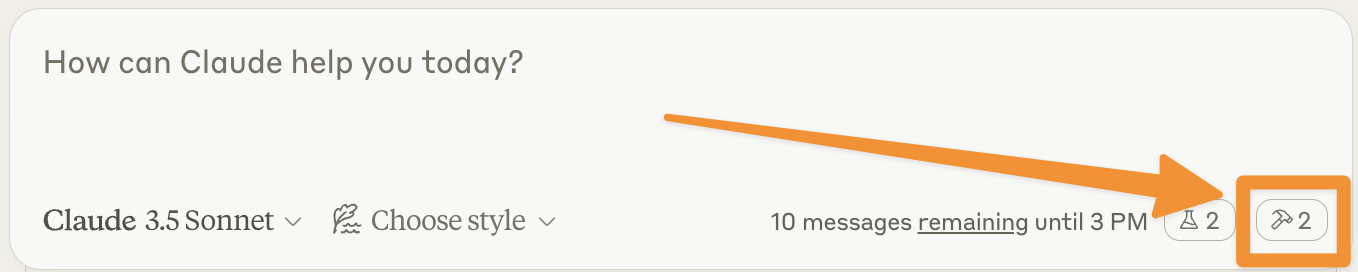
单击加号图标后,将鼠标悬停在“连接器”菜单上。您应该看到列出的 weather 服务器:
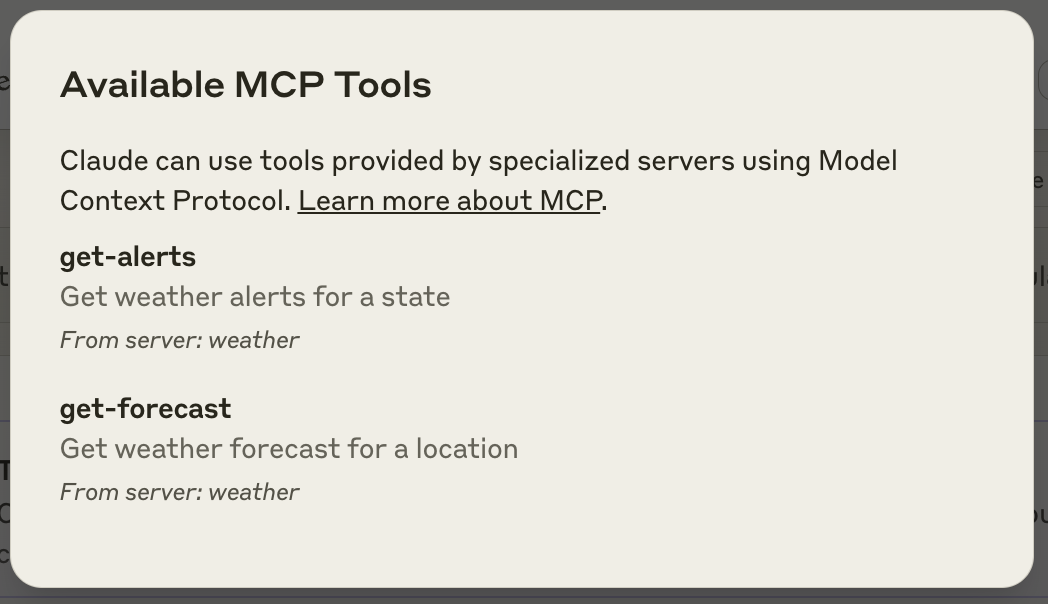
如果 Claude for Desktop 没有识别您的服务器,请继续阅读故障排除部分以获取调试提示。
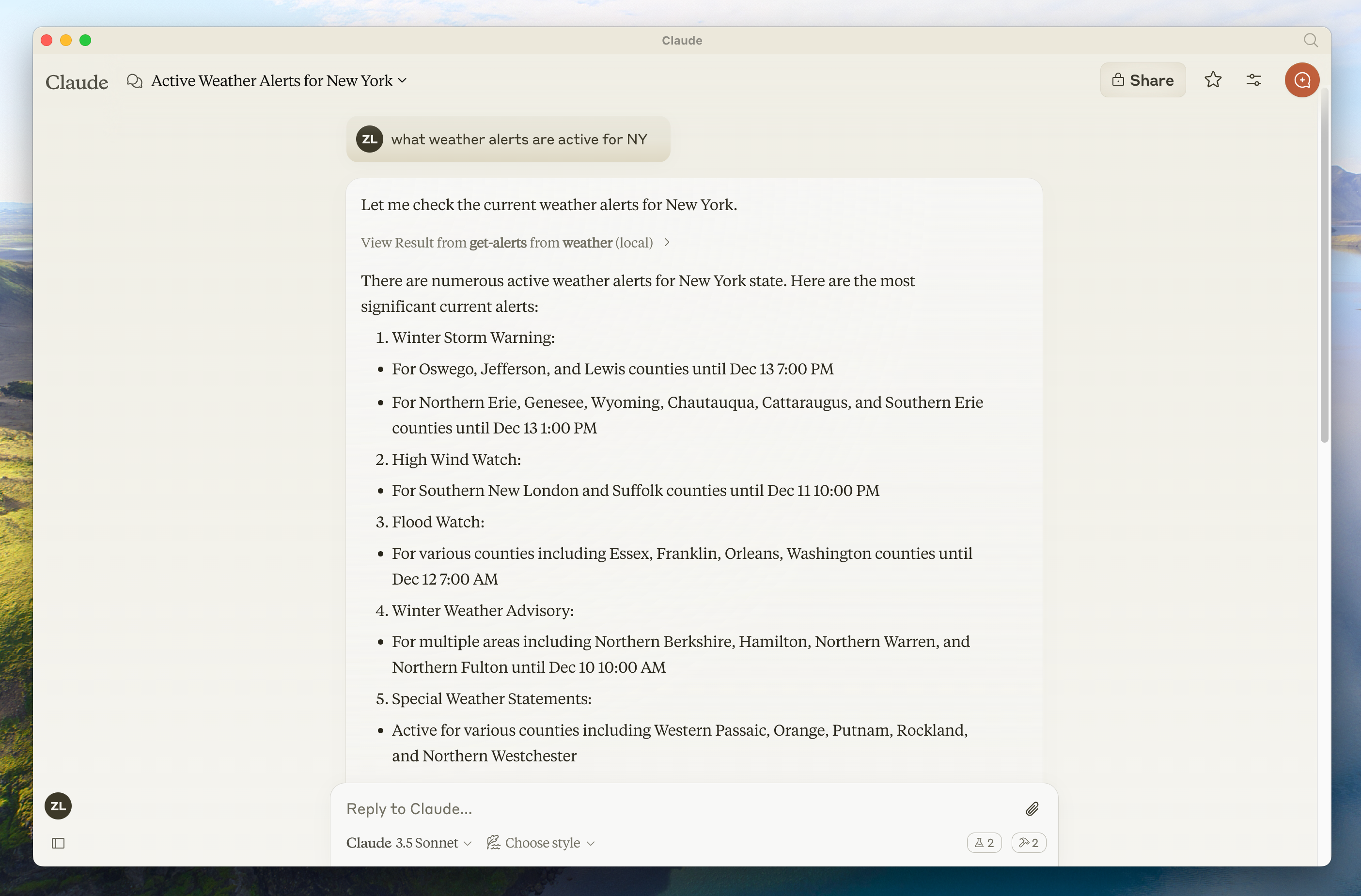
如果服务器已显示在“连接器”菜单中,您现在可以通过在 Claude for Desktop 中运行以下命令来测试服务器:
- 萨克拉门托 的天气怎么样?
- 德克萨斯州有哪些活跃的天气警报?
幕后发生了什么
当你提出问题时:
- 客户端将您的问题发送给 Claude
- Claude 分析可用的工具并决定使用哪些工具
- 客户端通过 MCP 服务器执行所选工具
- 结果被发送回 Claude
- Claude 生成自然语言响应
- 回复已显示给您!
故障排除
Claude 桌面集成问题
从 Claude for Desktop 获取日志
与 MCP 相关的 Claude.app 日志记录写入 ~/Library/Logs/Claude (macOS) 或 ~/.config/Claude/logs/ (Linux) 中的日志文件:
mcp.log将包含有关 MCP 连接和连接失败的常规日志记录。- 名为
mcp-server-SERVERNAME.log的文件将包含来自指定服务器的 stderr 输出。 Stdio 服务器可能使用 stderr 进行所有日志记录,因此这些文件不仅限于错误。
您可以运行以下命令来列出最近的日志并跟踪任何新日志:
# Check Claude's logs for errors
tail -n 20 -f ~/Library/Logs/Claude/mcp*.log
# Check Claude's logs for errors
tail -n 20 -f ~/.config/Claude/logs/mcp*.log服务器未出现在 Claude 中
- 检查您的
claude_desktop_config.json文件语法 - 确保项目的路径是绝对路径而不是相对路径
- 完全重新启动 Claude for Desktop
要正确重新启动 Claude for Desktop,您必须完全退出该应用程序:
- Windows:右键单击系统托盘中的 Claude 图标(该图标可能隐藏在“隐藏图标”菜单中),然后选择“Quit”或“Exit”。
- macOS:使用 Cmd+Q 或从菜单栏中选择“退出 Claude”。
- Linux:右键单击系统托盘中的 Claude 图标并选择“退出”,或从终端运行
pkill -f claude-desktop。
仅关闭窗口并不会完全退出应用程序,并且您的 MCP 服务器配置更改将不会生效。
工具调用默默失败
如果 Claude 尝试使用这些工具但失败了:
- 检查 Claude 的日志是否有错误
- 验证您的服务器构建和运行没有错误
- 尝试重新启动 Claude for Desktop
这些都不起作用。我该怎么办?
请参考我们的调试指南,了解更好的调试工具和更详细的指导。
天气 API 问题
错误:无法检索网格点数据
这通常意味着:
- 坐标在美国境外
- NWS API 有问题
- 您受到限流
修复方法:
- 验证您使用的是美国坐标
- 在请求之间添加一点延迟
- 检查NWS API状态页面
错误:[STATE] 没有活动警报
这不是错误 - 它只是意味着该州当前没有天气警报。尝试不同的状态或在恶劣天气期间检查。
后续步骤
构建客户端
了解如何构建您自己的可以连接到您的服务器的 MCP 客户端
示例服务器
查看我们的官方 MCP 服务器和实施图库
调试指南
了解如何有效调试 MCP 服务器和集成
使用特工技能构建
使用代理技能指导 AI 编码助手完成服务器设计